Background Styling
Each layer has a full set of CSS background properties that control how its image is displayed. The background editor is accessible from the Basic sub-tab of the selected layer.
Position
The position controls determine where the background image is anchored within the layer element.
Anchor Grid
A 3×3 grid lets you pick the anchor point:
| Left | Center | Right | |
|---|---|---|---|
| Top | top left | top center | top right |
| Center | center left | center center | center right |
| Bottom | bottom left | bottom center | bottom right |
Offsets
In addition to the anchor, you can apply X and Y offsets:
| Control | Range | Description |
|---|---|---|
| Offset X % | -100 to 100 | Horizontal offset from the anchor point |
| Offset Y % | -100 to 100 | Vertical offset from the anchor point |
Size
| Mode | Description |
|---|---|
| cover | Scale the image to cover the entire layer, cropping if necessary |
| contain | Scale the image to fit within the layer without cropping |
| auto | Use the image's intrinsic dimensions |
| custom | Specify width and height percentages manually (1% to 400%) |
Repeat
Controls whether the background image tiles:
| Preset | Behavior |
|---|---|
| no-repeat | Image displayed once |
| repeat | Image tiles in both axes |
| repeat-x | Image tiles horizontally |
| repeat-y | Image tiles vertically |
When using custom repeat mode, you can set each axis independently to repeat, no-repeat, round, or space.
Blend Mode
All 16 CSS blend modes are available:
normal, multiply, screen, overlay, darken, lighten, color-dodge, color-burn, hard-light, soft-light, difference, exclusion, hue, saturation, color, luminosity
The blend mode controls how the layer's background image composites with layers behind it.
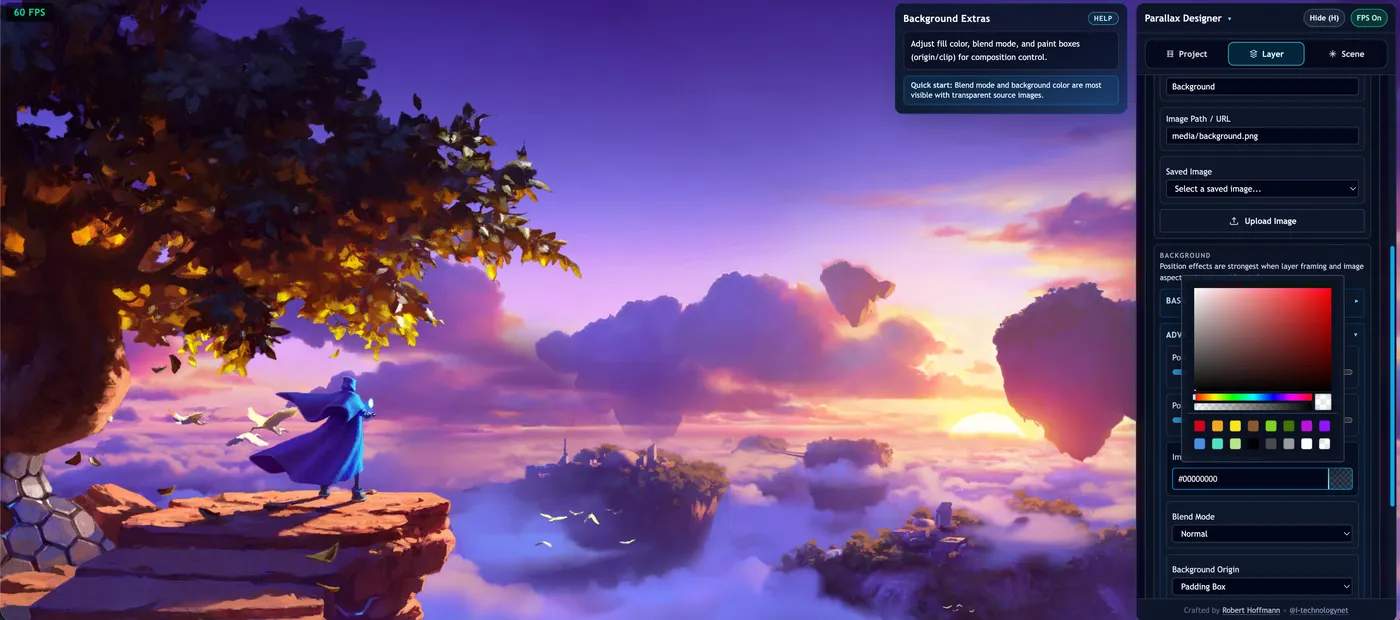
Background Color
Set a background color per layer using the color picker. The color appears behind the background image (visible through transparent areas or when no image is set).
Origin & Clip
| Control | Options | Description |
|---|---|---|
| Origin | border-box, padding-box, content-box | Positioning area for the background |
| Clip | border-box, padding-box, content-box | Painting area for the background |
Resetting Values
Double-click any control label to reset that field to its default value. For the color picker, double-click the color swatch to reset to the default background color.