Layer Management
Layers are the building blocks of a parallax scene. Each layer represents a positioned, styled image element that moves independently in response to pointer input and floating animations.
Layer Limits
A project supports up to 30 layers. This limit is enforced both in the UI (the add button is disabled) and during import (excess layers are trimmed from the end with feedback).
Creating Layers
Click the Add Layer button in the layer list to create a new layer with default values. The new layer is placed at the top of the z-index stack and automatically selected.
Selecting Layers
Click any layer in the layer list to select it. The selected layer is highlighted in the list, shown in the geometry guide overlay, and its properties are editable in the sub-tabs below. If the selected layer is hidden, the inspector card is locked (greyed out and non-interactive) until the layer is shown again from the layer list.
Reordering Layers
Drag layers in the layer list to reorder them. The drag handle is on the left side of each layer row. When you drop a layer, z-indices are automatically renormalized to maintain a contiguous 1..N sequence with no gaps.
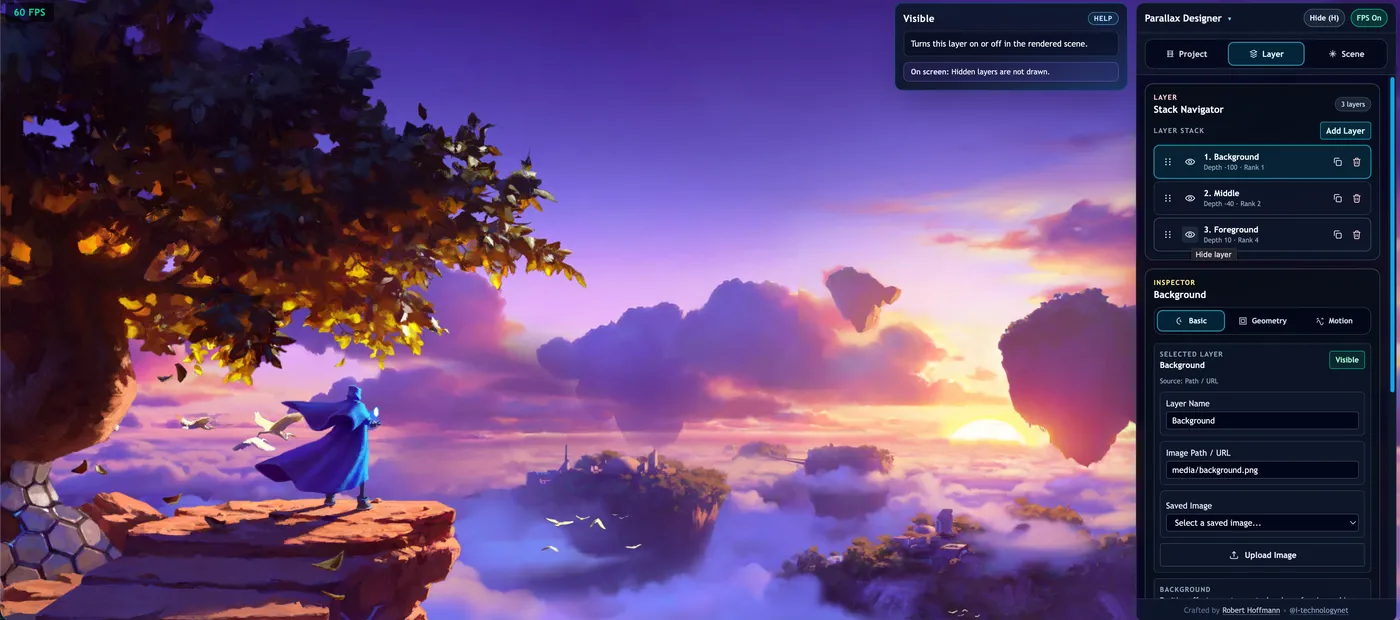
Duplicating Layers
Click the Duplicate button on a layer to create an identical copy. The duplicate receives a new unique ID and is inserted just above the original in the z-index stack.
Showing & Hiding Layers
Toggle a layer's visibility with the eye icon. Hidden layers are excluded from the parallax viewport rendering but remain in the project data and can be re-shown at any time. When a hidden layer is still selected, inspector sub-tabs and editor controls are intentionally deactivated to prevent edits against a non-rendered layer state.
Deleting Layers
Click the Delete button to remove a layer. Destructive actions show a confirmation dialog before proceeding.
Layer Sub-Tabs
The selected layer's editor is divided into three sub-tabs:
Basic
| Control | Description |
|---|---|
| Name | A label for the layer (for your reference; not rendered in the scene) |
| Image Source | Path or URL to the layer image. Can be an external URL, a relative path to public/media/, or an idb://asset/<id> reference to a locally uploaded image |
| Upload | Upload an image from your device. It is stored in the browser's IndexedDB and referenced via idb:// |
| Saved Images | Select from previously uploaded images stored in IndexedDB |
The Basic tab also includes the Background Styling editor for full CSS background configuration.
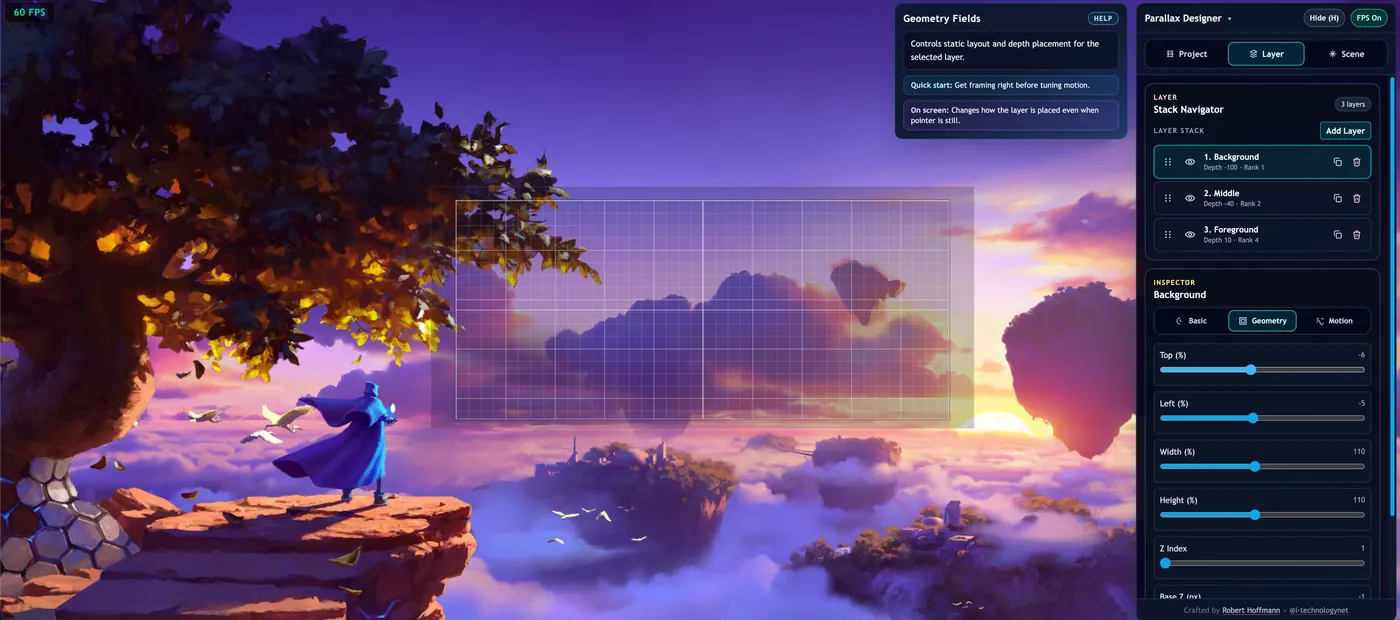
Geometry
| Control | Range | Description |
|---|---|---|
| Top % | -50 to 50 | Vertical position offset from the viewport center |
| Left % | -50 to 50 | Horizontal position offset from the viewport center |
| Width % | 50 to 180 | Layer width as a percentage of the viewport |
| Height % | 50 to 180 | Layer height as a percentage of the viewport |
| Z-Index | 1 to 30 | Stacking order (auto-managed, but manually adjustable) |
| Base Z | -300 to 100 | 3D depth offset on the Z axis (px) — pushes the layer toward or away from the viewer |
| Base Scale | 0.8 to 1.5 | Static scale multiplier applied before any motion effects |
Motion
| Control | Range | Description |
|---|---|---|
| Lerp | 0.005 to 0.3 | Smoothing factor — lower values create slower, smoother follow |
| Scale Boost | 0 to 0.1 | Additional scale applied based on pointer distance from center |
| Move X | 0 to 80 | Horizontal parallax displacement driven by pointer position |
| Move Y | 0 to 80 | Vertical parallax displacement driven by pointer position |
| Float X | 0 to 20 | Amplitude of horizontal sine-wave floating animation |
| Float Y | 0 to 20 | Amplitude of vertical sine-wave floating animation |
| Float Speed | 0 to 0.002 | Speed multiplier for the floating animation |
Double-Click to Reset
Double-click any slider label or the color swatch to reset that field to its default value. This works on all NumberField, SelectField, and color picker controls throughout the app.