UI Overview
Parallax Designer is a single-page application with a fullscreen parallax viewport and a floating control panel. There is no router — everything happens on one screen.
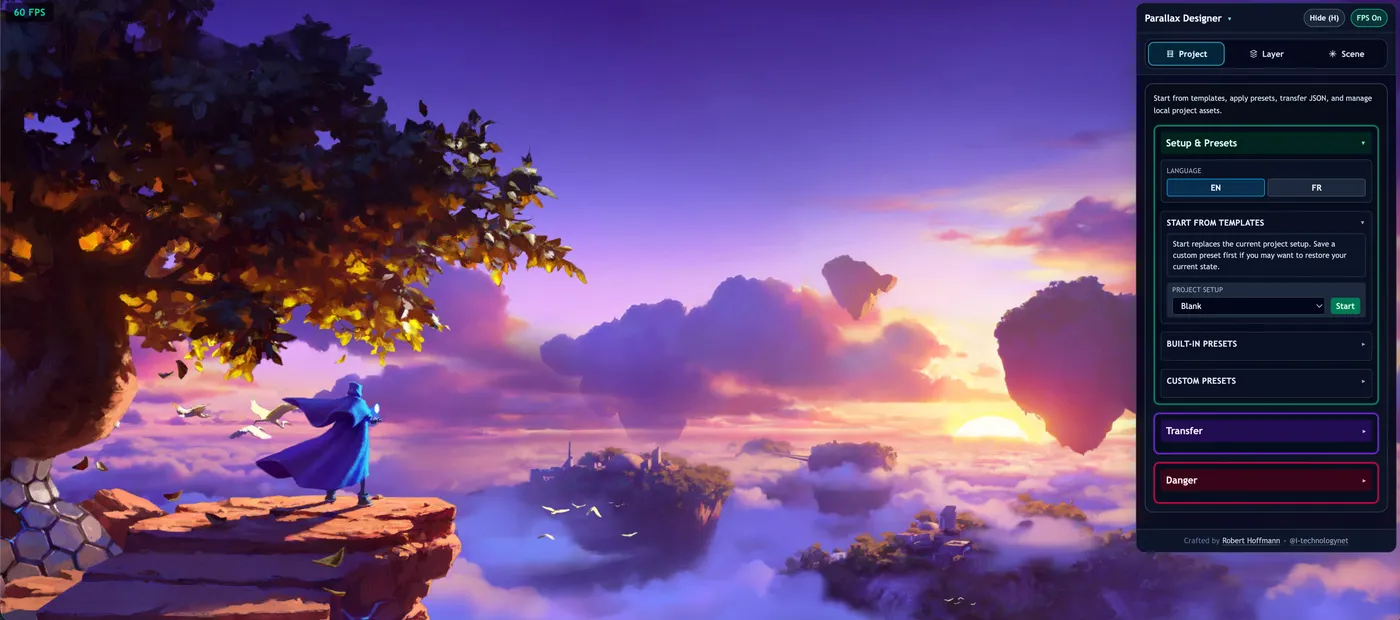
Viewport
The main area of the screen is the parallax viewport: a fullscreen container where all your layers are rendered in real time. Move your pointer across the viewport to see the parallax effect in action — layers shift, rotate, float, and scale in response to pointer position.
The viewport also hosts the geometry guide, a translucent mini-map overlay that shows a grid, axis lines, and a dotted rectangle representing the selected layer's bounding box relative to the viewport.
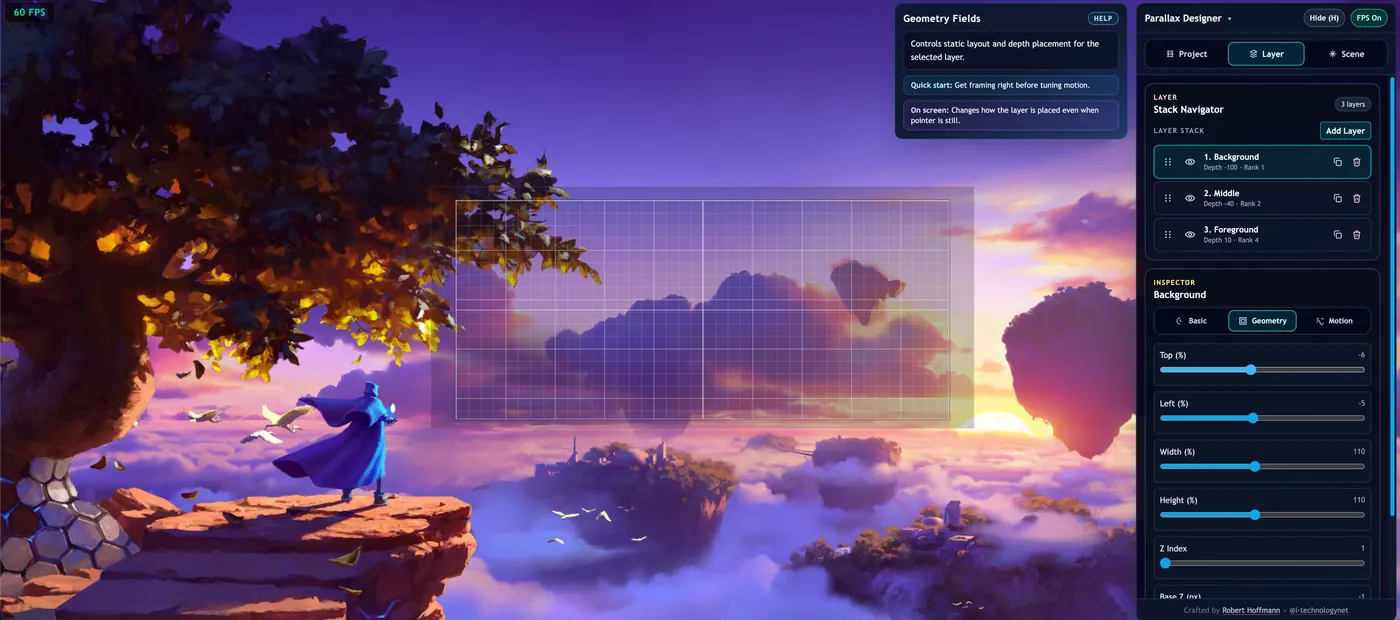
Overlay Panel
The overlay panel is a floating, draggable control surface that sits on top of the viewport. You can:
- Drag it by the header bar to reposition it anywhere on screen
- Collapse/expand it to get a clearer view of the scene
- Toggle visibility by pressing the H key
The panel is automatically clamped to the viewport edges so it never drifts off screen.
Tab Navigation
The panel has three main tabs:
| Tab | Contents |
|---|---|
| Project | Templates, presets, custom presets, import/export, and danger-zone operations |
| Scene | Scene-level controls (max rotation, container lerp, perspective, background color) and harmonics |
| Layer | Layer list, plus per-layer editors for basic info, geometry, motion, and background styling |
Each tab is accessible from the segmented tab bar at the top of the panel. Tabs support keyboard navigation with arrow keys.
Layer Tab Details
When the Layer tab is selected, you see:
- Layer list — All layers in the project, ordered by z-index. Drag to reorder, click to select, and use the action buttons to add, duplicate, show/hide, or delete layers.
- Sub-tabs — The selected layer's editor is divided into three sub-tabs:
- Basic — Layer name, image source (URL/path or local upload), and background styling
- Geometry — Position (top/left %), dimensions (width/height %), z-index, base Z depth, base scale
- Motion — Lerp smoothing, scale boost, move X/Y, float X/Y, float speed
If the selected layer is hidden, the inspector sub-tabs and editor controls are locked with a greyed overlay. Use the visibility toggle in the Layer list to re-show the layer and re-enable editing.
FPS Badge
A color-coded FPS counter appears in the viewport corner:
| Color | FPS Range | Meaning |
|---|---|---|
| Green | ≥ 55 | Smooth performance |
| Amber | 30 – 54 | Moderate performance |
| Rose | < 30 | Low performance |
FPS visibility can be toggled from the UI state.
Contextual Help
Hovering over any control label reveals a contextual help tooltip with:
- Title — The control name
- Body — What the control does
- Tip — Practical usage advice
- Impact — What values change when you adjust it
- Performance — Any performance implications
The help tooltip docks to the edge of the overlay panel for easy reading.
Keyboard Shortcuts
| Key | Action |
|---|---|
H | Toggle overlay panel visibility |
Geometry Editing Freeze
While the Geometry editor is active and the guide overlay is visible, motion is temporarily frozen so layer bounds can be adjusted without live movement noise. Normal runtime motion resumes automatically outside that state.